I have noticed that if you put a customer address sub-grid on an account or contact form you can see the two out of the box addresses that are created when you create the record.
Just a note about these. Do not delete them. If you do the record won't work right and you will not be able to update your record until you re-create them.
:)
-Happy Thursday.
Showing posts with label Customization. Show all posts
Showing posts with label Customization. Show all posts
Thursday, April 25, 2013


Tuesday, March 6, 2012
Moving Form Labels Above the Field Instead of on Side of Field in Microsoft Dynamics CRM 2011
I know that I have had trouble in the past when I make a new four column section, getting everything to fit on the form, and by default you need to re-size the form on open to even get everything to fit unless you can find a way to shrink your fields down. I know there are settings to change the amount of space given to the label, but I have found another way to tackle this.
I was in the car with three other MVP's one day and Scott Sewell starts talking to the other about how he swears by putting the labels for form fields on top of the fields instead of off to the left side. I know at least two of the MVP's in the car (I was one of them) almost jumped out of their seat.
Here is how it works:
1. The setting is at the section level. So, double-click on a section to bring up the section properties.


- I hope this helps!
I was in the car with three other MVP's one day and Scott Sewell starts talking to the other about how he swears by putting the labels for form fields on top of the fields instead of off to the left side. I know at least two of the MVP's in the car (I was one of them) almost jumped out of their seat.
Here is how it works:
1. The setting is at the section level. So, double-click on a section to bring up the section properties.

2. Now, click on the formatting tab and scroll to the bottom to find the "Field Label Position" setting:
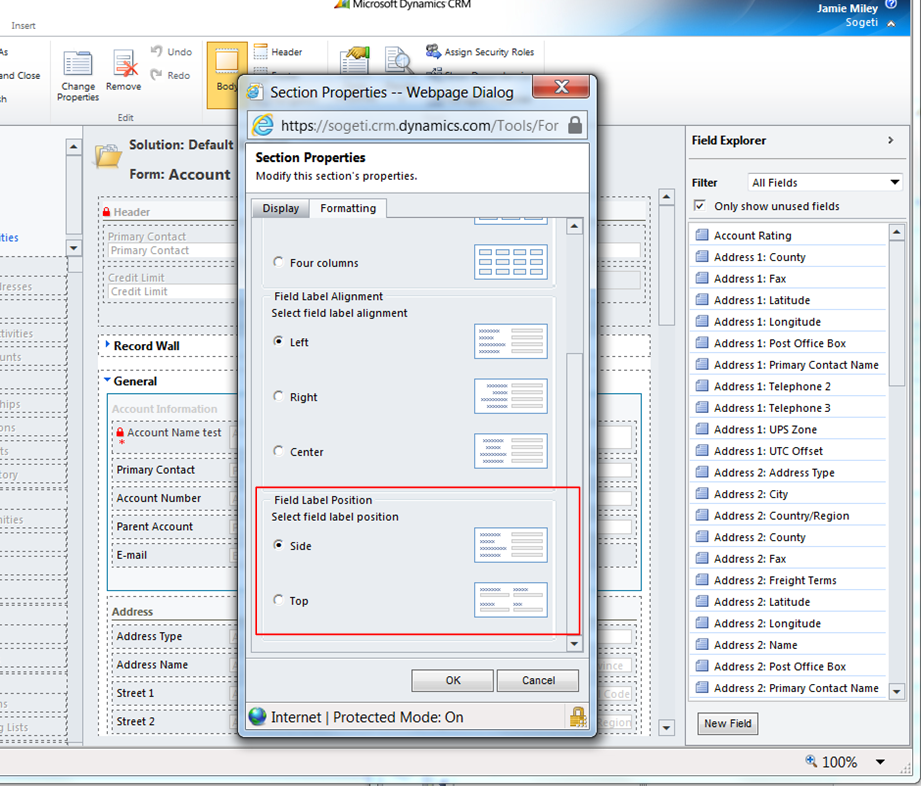
3. Now you just have to change the setting to "Top" and save and publish the form. You can repeat this for all sections on the form if you want to.
It's as easy as that. Here's what it looks like when you are done and have published the form.

Subscribe to:
Posts (Atom)